

Plugin or your own integration?
If your store runs on one of the platforms below, use the plugin. Build a direct integration only when you have your own storefront, or need something the plugin does not offer — a bespoke checkout, a split rule per order, or a payment step inside a non-commerce flow.
How it works
The plugin adds SeerBit as a payment option at your store’s existing checkout. When a customer pays, the plugin calls SeerBit, takes them through the payment, and reports the result back to the platform so the order is marked paid. Transactions appear in your SeerBit dashboard alongside every other payment.Before you start
- Retrieve your API keys: log in to your SeerBit dashboard and go to Settings > API Keys.
- Start in test mode: configure the plugin with your test keys and complete at least one successful test transaction before switching to live.
Usage
Use any of our recommended solutions for your platform.

WooCommerce
Enable payments on your WordPress store with SeerBit’s official WooCommerce plugin. It supports cards, bank transfers, and mobile money.
Installation & Setup
- Download the SeerBit plugin.
- Follow the WooCommerce installation instructions.
- Enter your API keys in the plugin settings and select Test or Live mode.
Resource: WooCommerce testing guide


Magento (Adobe Commerce)
Integrate SeerBit with your Magento 2 checkout for enterprise-grade payment processing.
Installation & Setup
- Install Composer.
- Follow the instructions in the SeerBit Magento module repository.
- Configure your API keys in Test mode before going live.
Resource: Magento module test guide


Wix
Connect SeerBit to your Wix store without writing code.
Installation & Setup
- Follow the Wix Help Center guide for connecting SeerBit.


Zoho Books
Send invoices and receive payments across multiple African countries with SeerBit’s Zoho Books extension.
Prerequisites
- An active Zoho Books account
- An active SeerBit account
- Administrator access to both platforms
Installation & Setup
- Enable SeerBit in Zoho Books through the Integration Directory.
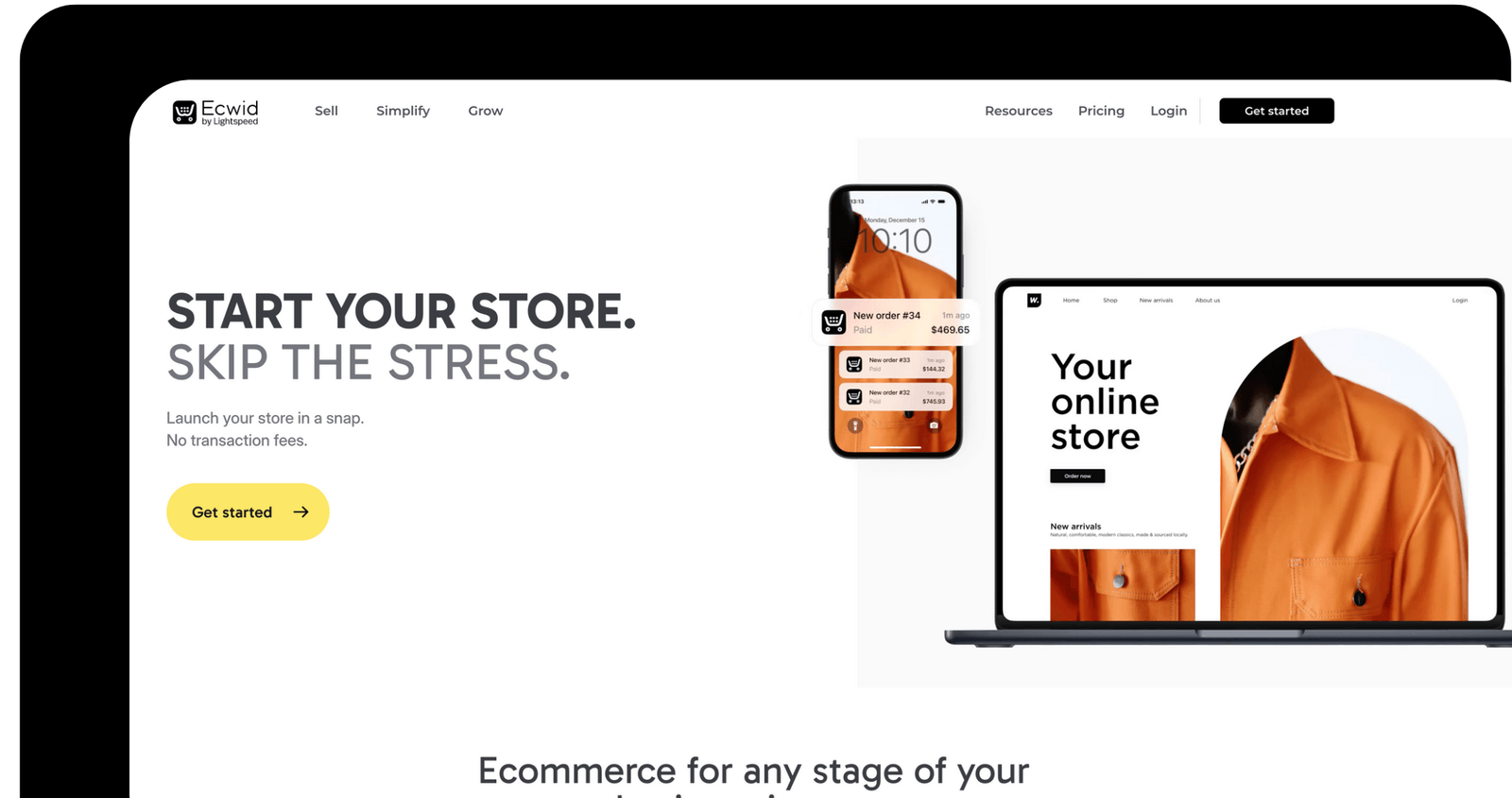

Ecwid
Accept payments on Ecwid storefronts across web and social platforms.
Installation & Setup
- Add SeerBit as a payment method from the Ecwid App Store.
Resource: Ecwid testing guide
After installation
- Test every payment method you plan to offer, using the test cards — not just cards.
- Check the order is marked paid in your platform, not only that the payment succeeded in SeerBit. A payment that does not update the order is the most common plugin problem.
- Confirm the result server-side where your platform allows it — see Verify a payment.
- Switch to live keys and run one small real transaction before you open the store. See Go live.
Notes
- Plugins are configured, not coded. If you need behaviour the plugin does not expose — custom split rules, a bespoke payment step — build a direct integration instead.
- Test and live keys are separate. A plugin configured with test keys takes no real money; swapping the keys is what makes the store live.
- Plugin updates come from the platform, not from SeerBit. Keep the plugin current through your platform’s own update mechanism.
- Questions about a specific plugin? Reach SeerBit Support.